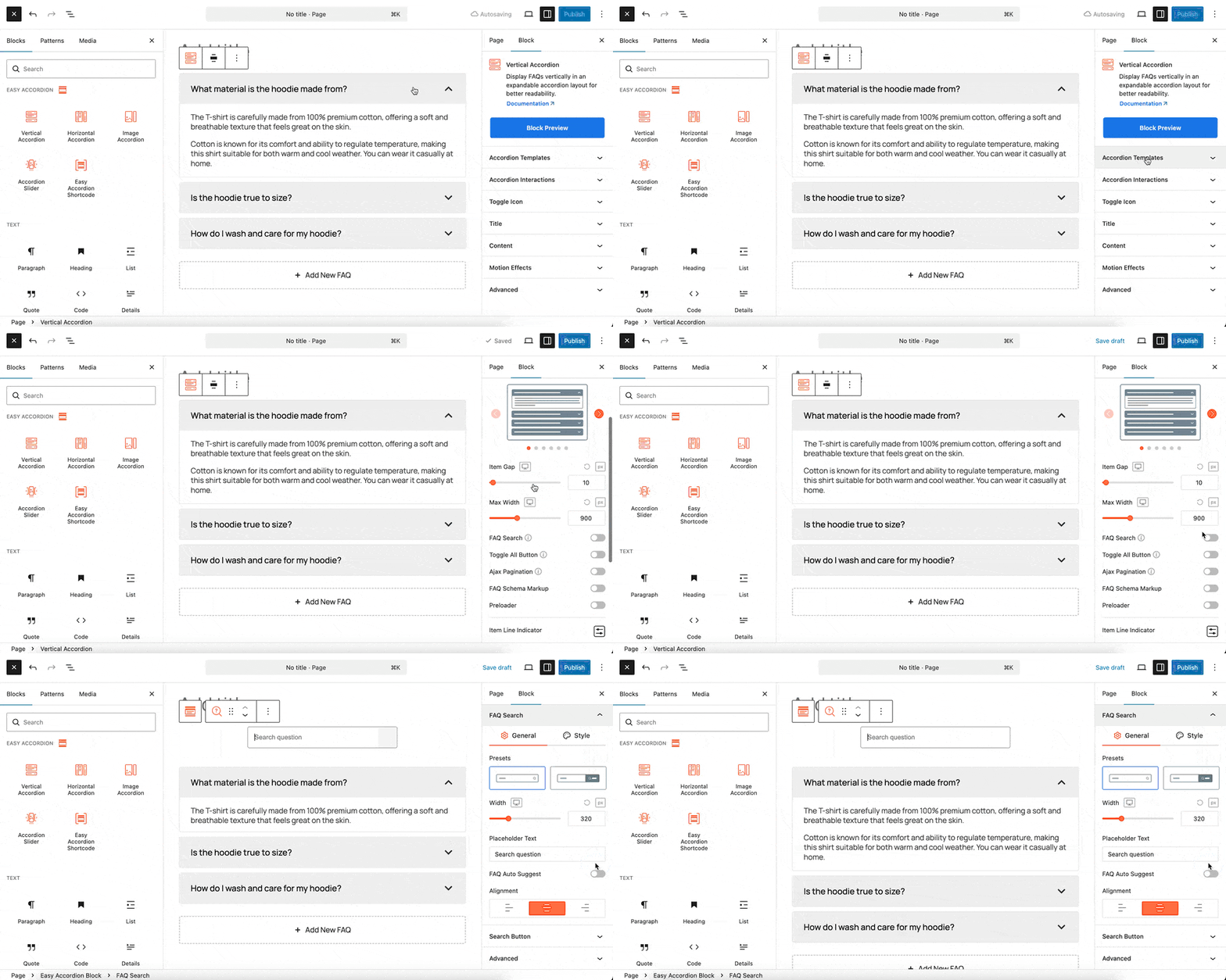
With the Easy Accordion FAQ Search Block, you can empower your users to find specific information quickly within large sets of collapsible content. This child block is designed to be integrated directly into your accordion layout, providing a real-time filter that improves navigation and user experience for text-heavy sections like FAQs.
Step 1: Add the Search Child Block
- Go to your WordPress Dashboard.
- Navigate to Pages > Add New or edit a page containing an Easy Accordion block.
- Click on the Vertical Accordion (or other accordion block) where you want to add the search feature.
- From the right-hand settings panel under the Accordion Templates you will find the FAQ Search.
- Click to insert the block, positioning it above your accordion items for maximum visibility.
Step 2: Customize Your Search Functionality
The Search block acts as a dynamic filter, allowing visitors to type keywords and instantly see relevant accordion items. This is particularly useful for complex support pages or extensive product documentation where manual scrolling would be inefficient.
Customization Tabs:
When the block is selected, you can use the right-hand sidebar to fine-tune the search experience. Customize the placeholder text (e.g., “Search FAQs…”) and button labels. Adjust colors, typography, and button positioning to ensure the search bar feels like a native part of your accordion design.
You can see the live preview of how the search bar looks within your accordion items as you make adjustments. Once you are satisfied, click Publish or Update.