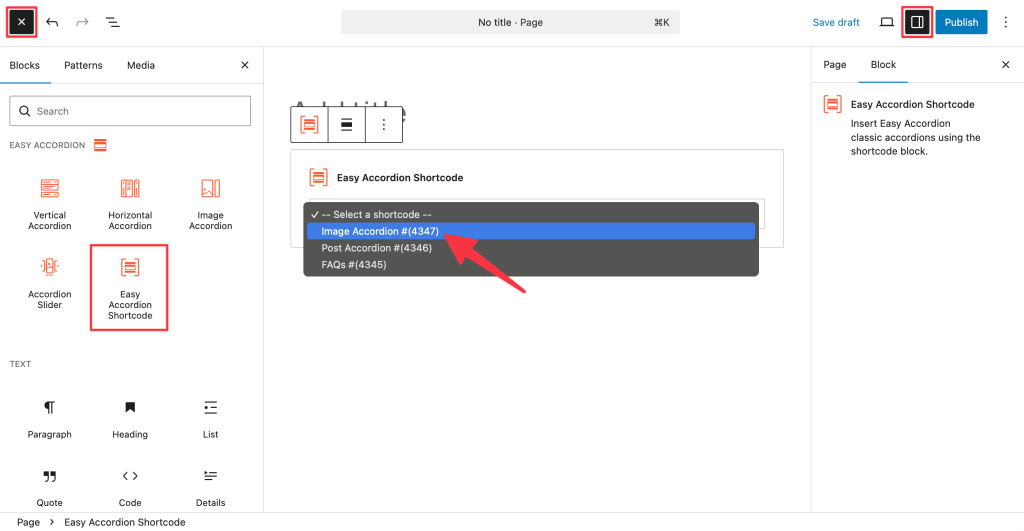
With the Easy Accordion Shortcode Block, you can quickly insert any of your pre-configured accordions directly into your pages using a simple dropdown interface. This block is specifically designed to bridge the gap between your classic accordions and the block-based accordions.
Note: This block will only be visible in the block library if you have already created at least one accordion shortcode within the Easy Accordion dashboard.
Step 1: Add the Easy Accordion Shortcode Block
- Go to your WordPress Dashboard.
- Navigate to Pages > Add New (or edit an existing page).
- In the block editor, click the “+” (Add Block) button.
- Search for “Easy Accordion Shortcode”.
- Click to insert the block into your page.
Step 2: Select and Display Your Accordion
Unlike the dedicated layout blocks, the Shortcode block serves as a container for accordions you have already built and styled in the main plugin menu. This is ideal for maintaining consistency across multiple pages where the same accordion needs to be displayed.
How to use the selection tool:
Once the block is added, you will see a dropdown menu within the editor area:
- Select a Shortcode: Click the dropdown menu to see a list of all your available accordions.
- Identify by ID: Each option displays the accordion name followed by its unique ID (e.g., Image Accordion #(4347) or FAQs #(4345)).
- Live Injection: Once a shortcode is selected from the list, the plugin will automatically fetch the settings and content associated with that ID and prepare it for display on the frontend.
Customization Panel:
When the block is selected, the right-hand sidebar provides a brief description of its function: “Insert Easy Accordion classic accordions using the shortcode block.” Once you have selected the desired accordion from the dropdown, click Publish or Update to make it live on your site.