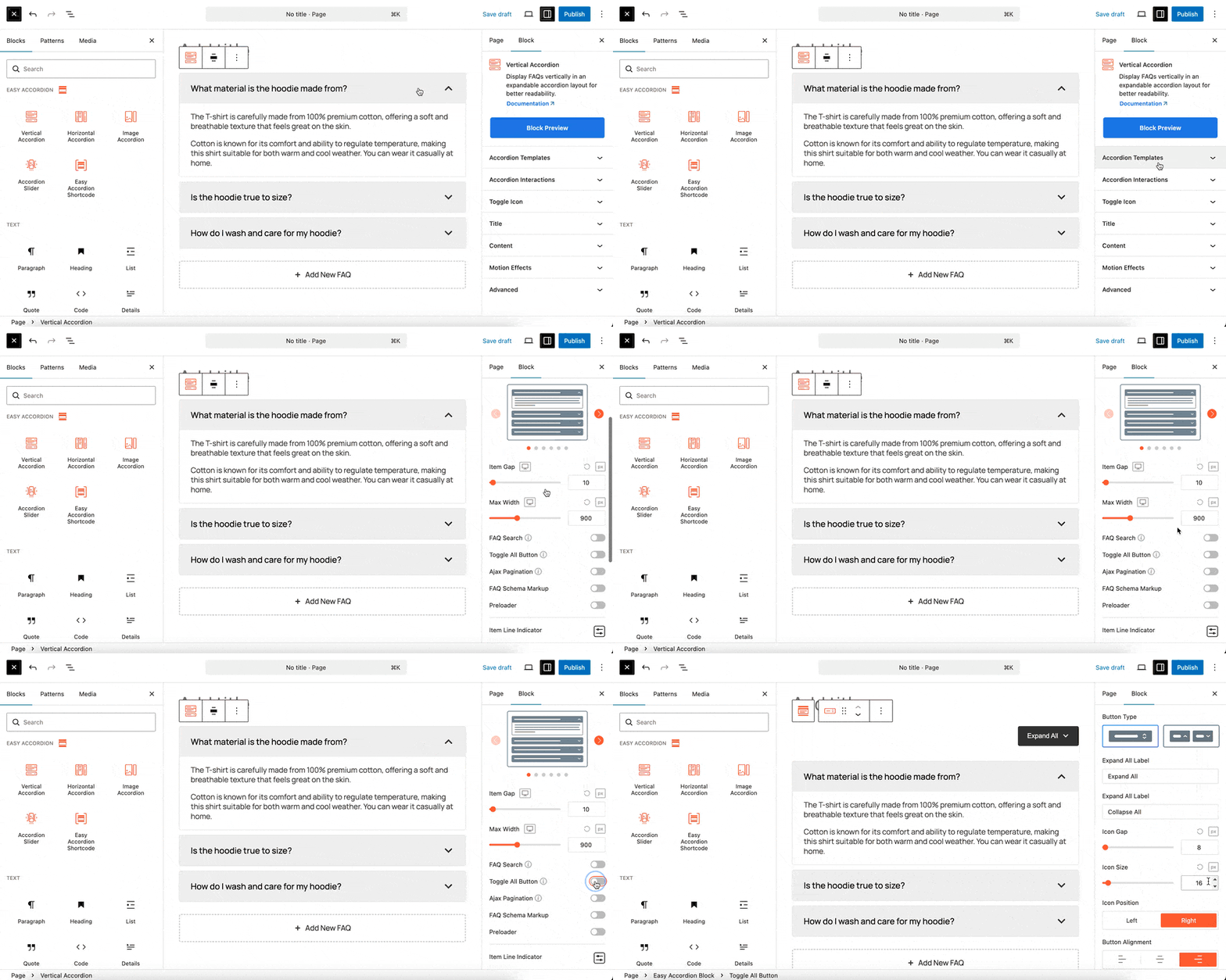
With the Toggle All Button Block, you can provide your users with a convenient way to expand or collapse all accordion items simultaneously with a single click. This child block is essential for improving the user experience on pages with extensive content, such as long FAQ lists or detailed documentation.
Step 1: Add the Toggle All Button Child Block
- Go to your WordPress Dashboard.
- Navigate to Pages > Add New or edit an existing page containing an Easy Accordion block.
- Click on the Vertical Accordion (or another accordion parent block) where you wish to place the button.
- From the right-hand settings panel under the Accordion Templates, you will find the Toggle All Button.
- Click to insert the block, positioning it above your accordion items for maximum visibility.
Step 2: Customize Your Toggle Button
The Toggle All Button acts as a global controller for the parent accordion. When clicked, it intelligently toggles the state of all items—expanding them to show all information at once or collapsing them to clean up the page view.
Customization Tabs:
When the Toggle All block is selected, use the right-hand sidebar to adjust its properties. Customize the text for both the “Expand All” and “Collapse All” states to ensure the labels are clear for your audience. Modify the button’s color, border, padding, and alignment to match the visual theme of your accordion and website.
You can observe the live preview of the button’s appearance and position directly within the editor. Once your configuration is complete, click Publish or Update.