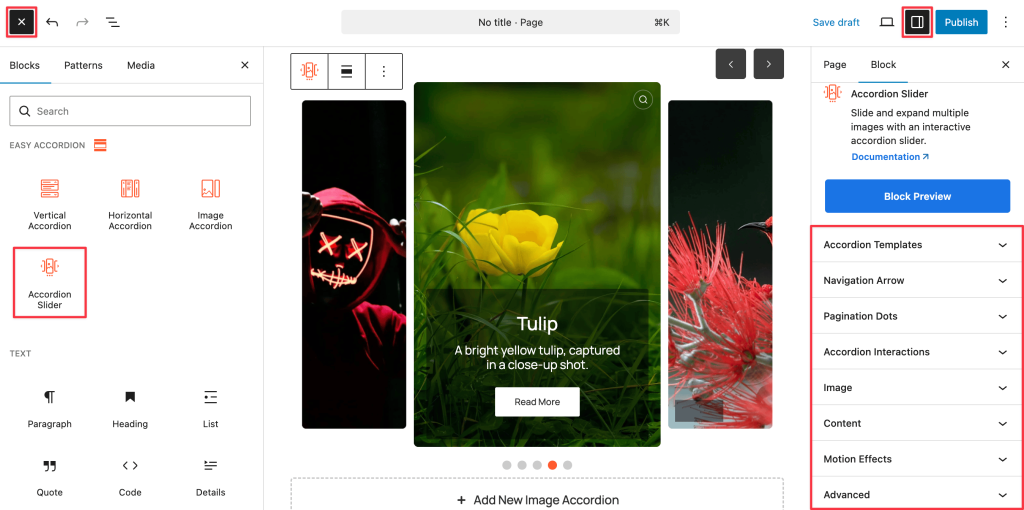
With the Accordion Slider Block, you can slide and expand multiple images using an interactive, space-saving layout. Here’s how to add it to your WordPress page and customize it to match your needs.
Step 1: Add the Accordion Slider Block
- Go to your WordPress Dashboard.
- Navigate to Pages > Add New (or edit an existing page).
- In the block editor, click the “+” (Add Block) button.
- Search for “Accordion Slider” under the Easy Accordion category.
- Click to insert the Accordion Slider Block into your page.
Step 2: Customize Your Accordion Slider
The Accordion Slider Block combines the functionality of a traditional slider with the interactive nature of an accordion. It is perfect for showcasing high-quality visuals and brief descriptions in a fluid, engaging way.
You can easily build your slider by clicking the “+ Add New Image Accordion” button located at the bottom of the block in the editor. The block provides extensive control over how users interact with your content, from navigation styles to motion effects.
Customization Tabs:
When the block is selected, the right-hand sidebar panel displays several customization categories to fine-tune your slider’s behavior and appearance.
You can see the live preview of your customization instantly within the editor. Once you’re happy with the design, click Publish or Update.